

VOKA toolkit: overview of 11 useful features for students and educators

Share:

Copy link

Share via Telegram

Share on Facebook

Share on LinkedIn

Share via WhatsApp

Share on X

Share via Email
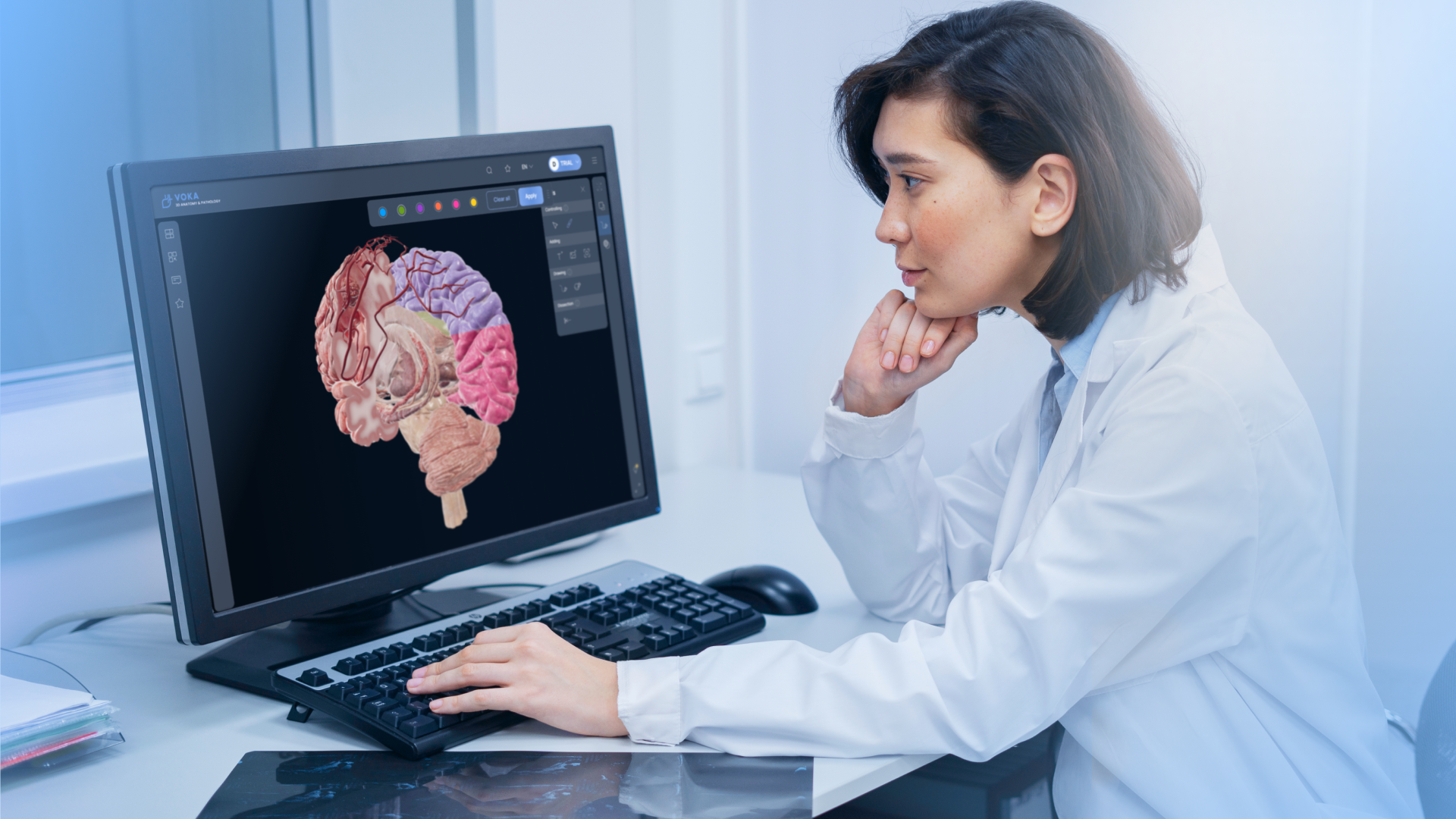
For most students, the hardest part of learning anatomy and pathology comes down to one challenge: visualization.
Traditional resources rely on 2D images and diagrams, so students miss out on the full picture. Without a sense of depth and spatial relationships, it’s nearly impossible to grasp how the human body works.
Educators face similar hurdles. Not every classroom is equipped with quality anatomical models or advanced imaging tools. That makes it hard to deliver the kind of hands-on demonstrations that truly bring the subject to life.
The result? A closed loop: students struggle to fully visualize anatomy, teachers can’t always show it effectively, and both sides end up frustrated.
This is the exact moment where VOKA 3D Anatomy & Pathology might just be the tool you’re looking for. In this article, we’ll discuss 11 powerful VOKA features that help students and educators break that cycle and streamline anatomy learning through advanced visualization.
1. Dissection
One of the most powerful features in VOKA 3D Anatomy & Pathology is the Dissection tool. Instead of relying on static cross-sections in a book, you can literally “draw” a slice line on the 3D model, and the app will instantly cut it open for you.
This virtual scalpel creates a clean single-plane view of any region or organ, rotatable from any angle. It’s like doing a dissection, but without the limitations of physical models or cadavers. You can experiment freely, rotate the cut, and instantly get a better sense of how different systems are organized in three dimensions.
Use cases for students
-
Mastering spatial relationships: With the Dissection tool, students can slice through any organ or region and immediately see how structures connect and overlap, making complex anatomy easier to remember.
-
Preparing for exams: Instead of memorizing isolated diagrams, students can practice by cutting the model at different points. This way, they train themselves to recognize anatomy from multiple angles, which is exactly the kind of skill needed for practical tests or clinical work.
-
Self-study at their own pace: In a real lab, dissections are time-limited and not repeatable. With VOKA, students can make as many cuts as they want, undo them, and repeat as often as needed until concepts stick.
-
Pro tip: To take it a step further, they can capture the perfect slice with the Screenshot tool and add it directly to their notes or study guides, combining hands-on exploration with organized, visual review material.
Use cases for educators
-
Explaining complex structures: Teachers can use Dissection during lectures to show exactly how the structures are positioned in relation to others. This makes explanations much more concrete and helps students follow along.
-
Customizing demonstrations: Instead of relying on pre-made slides or textbook images, an educator can create a cut in real time to match the actual topic of discussion. Sometimes, a question from students takes the lesson in a new direction. In those moments, virtual dissection allows for instant demonstration of something that would be impossible to show with pre-collected resources. This flexibility makes lessons truly responsive to students’ needs.
-
Supporting cadaver labs: Virtual dissections are not meant to replace the real lab experience, but they can prepare students for it. An educator can demonstrate where to cut and explain what to expect inside the body using the 3D model. Then, when students enter the cadaver lab, they already have an idea of what to focus on. This makes the actual dissection less overwhelming.
2. Fill
The Fill tool lets you color specific anatomical structures with a simple tap. Just select the part you want, and it fills with color. Tap again, and the color disappears.
It may sound simple, but this feature is quite handy: by assigning different colors to organs, vessels, or entire systems, complex anatomy becomes much easier to understand. Instead of staring at a uniform model, you can focus on specific areas of study.
Use cases for students
-
Focusing on the needed structures: Anatomy models often look overwhelming, with dozens of similar-looking structures packed together. By coloring individual parts, students can visually separate them and focus on one system at a time. This makes memorization less stressful and helps build a step-by-step understanding.
-
Building associations: Color mapping (assigning consistent colors to certain structures to make them easier to recognize and remember) is a well-established method for studying anatomy. With VOKA’s Fill tool, students can build personalized color maps directly on 3D models. For example, they might color-code different lobes of the brain or separate muscles of the leg into functional groups. This turns the model into an active memory aid, making recall much faster during exam preparation or practical sessions.
Use cases for educators
-
Highlighting key structures during lectures: Teachers can color specific organs or systems to guide student attention. This helps prevent information overload by prioritizing key information.
-
Creating customized visuals: Pre-made diagrams often don’t match the exact teaching scenario. Using coloring, an educator can instantly prepare a customized model — say, highlighting just the layers of the heart wall — for more precise explanations.
-
Encouraging interactive learning: In class, a teacher can invite a student to the front and ask them to highlight specific structures on the 3D model. This can be done during exams, quick quizzes, or simply as a way to check understanding during a lesson. Selecting and coloring parts in real time keeps students engaged, and it also helps teachers instantly assess student progress.
3. 2D/3D pen
Approximately 65% of people are what’s called “visual learners” (people who learn best when information is presented to them visually, using tools like charts, diagrams, images, and videos to process, understand, and remember concepts effectively). VOKA includes both 2D and 3D drawing tools for exactly that purpose. With the 2D Pen, you can sketch directly on the screen, adding arrows, circles, or quick notes to highlight key details. With the 3D Pen, you can draw right on the surface of the model itself, marking structures in space and wrapping lines around organs or bones.
Use cases for students
-
Annotating while studying: Students can use the 2D Pen to mark up what they see on screen — drawing borders, circling structures, or writing reminders. This transforms the model into a living notebook that reflects their personal learning process.
-
Exploring spatial orientation: With the 3D Pen, students can draw directly on the anatomy model. For example, they might trace the path of a nerve along a limb or outline the boundaries of a lobe on the brain. This hands-on tracing makes spatial relationships easier to understand and remember.
Use cases for educators
-
Explaining complex pathways: Teachers can sketch out the course of blood vessels, nerves, or ducts directly on the model, making routes much clearer. And when combined with virtual dissection, drawing becomes even more powerful: an educator can slice the model open and then draw directly on the exposed section to highlight key pathways or relationships inside. This layered approach gives students both a structural view and guided annotation.
-
Highlighting key areas in lectures: The 3D Pen acts as an advanced pointer during live demonstrations. Instead of simply pointing, you can draw directly on the model to guide students’ attention to the exact area being discussed, so they don’t get lost in the complexity of the full structure.
4. Adding text
The Text tool lets you place notes directly alongside the 3D model. It works by having a small window pop-up where you can write explanations, reminders, or any other relevant information. This feature turns the model into an annotated learning space. Instead of flipping between a textbook and the model, students and educators can keep all the key information alongside the structure being studied.
Use cases for students
-
Taking contextual notes: While using VOKA, students can write explanations or keywords directly next to the relevant structure, creating temporary annotations during a session. Though the notes disappear after exiting the model, they are perfect for highlighting key points during lectures or guided study.
-
Recording questions or uncertainties: While exploring the model, students can type questions about a structure or system on-the-fly. Later, they can use these notes to guide their discussion, ask the instructor for clarification, or revisit challenging areas.
Use cases for educators
-
Adding explanations during lectures: Teachers can place text notes directly next to anatomical structures as they talk through them. These notes can include definitions, additional context, or helpful tips that reinforce the lesson.
-
Assigning tasks: Educators can use the text box to assign specific tasks to complete with the model during tests or interactive sessions. For example, “highlight all branches of this artery,” “perform a virtual dissection of the thoracic cavity,” or “identify three structures related to this organ.” Shown on a shared screen or interactive board, these prompts turn the model into a guided learning activity.
5. Adding image
The Adding Image tool works similarly to Adding Text, but instead of writing notes, you can attach pictures next to the 3D model. This could be reference diagrams, radiology scans, histology slides, or any relevant visuals. By placing images directly alongside the model, students and educators can combine 3D exploration with additional visual context, making it easier to understand complex structures and relationships.
Use cases for students
-
Creating personalized study aids: By attaching images next to the 3D model, students can create a personal study resource. This helps them see the same structure in multiple contexts, reinforcing understanding and memory. When preparing for exams, having these images alongside the model allows students to practice recognizing structures as they might appear in different formats on the test — whether it’s a cross-sectional scan, a labeled diagram, or a real clinical image.
-
Supporting group work and discussions: In team assignments, students can compare images with the 3D model, discussing differences and similarities. This encourages critical thinking, helps them understand multiple perspectives, and actively develops communication and collaboration skills.
Use cases for educators
-
Supplementing lectures with reference visuals: Teachers can add extra images to show details that are difficult to illustrate with the 3D model alone, while keeping everything in one place for students.
-
Creating guided exercises: By attaching reference images to the model, educators provide students a visual guide for completing tasks, for instance, matching structures on the 3D model to those seen on a histology slide. This approach helps students make connections between abstract models and real-world examples.
6. Screenshots
The Screenshots tool allows users to capture the 3D model exactly as it appears on the screen. You can position the model at the desired angle and save a high-quality image with a single click. This makes it easy to create visual references, document observations, or build personalized study materials.
Use cases for students and educators
-
Documenting assignments and reports: High-quality screens can be used to document completed tasks, illustrate findings in assignments, or include clear visuals in lab reports.
-
Supporting collaboration: Sharing screenshots with classmates or instructors allows for discussion, comparison, and feedback, making group work more interactive and engaging.
-
Enhancing presentations: Clear, accurate visuals can be directly added to slides, helping teachers and students create professional-looking presentations.
7. Topography mode
Topography mode allows users to focus on the relative locations of structures in pathology models. By highlighting the spatial relationships between different parts, this mode helps students and educators better understand anatomy and pathology in context.
It’s especially useful when learning complex regions where relationships between structures are more important than individual details. Instead of just seeing isolated organs or tissues, users can explore how everything fits together in 3D space.
Use cases for students and educators
-
Preparation for dissections: By demonstrating the exact position of organs, vessels, and tissues, the Topography mode enables learners to approach real dissections with confidence. It helps anticipate what lies beneath each layer, avoid damaging surrounding structures, and follow the correct sequence when exploring complex regions.
-
Navigating complex systems: In dense anatomical areas, such as the bones or tightly packed regions like the neck or pelvis, many structures look similar at first glance. Visualizing topography helps users distinguish layers, identify landmarks, and navigate the 3D space accurately.
-
Preparation for interpreting medical images and pathologies: Topography mode gives a clear sense of the 3D relationships between structures, which is essential before reading MRI, CT, or X-ray scans. By seeing how organs, vessels, and nerves are positioned relative to each other in 3D, learners can later recognize these structures more confidently on 2D or cross-sectional images. Beyond imaging, this spatial awareness also helps when studying diseases, as students can understand not only where a pathology is located, but also how it relates to neighboring systems.
8. Color highlighting
In Systemic anatomy, bones are shown as a uniform structure, which makes it hard to distinguish their different parts at a glance. The Color highlighting tool solves this problem by automatically assigning distinct colors to logically connected bone parts. With one click, these skeletal elements become visually separated, and the overall structure is much easier to read.
Use cases for students
-
Clearer structural understanding: Instead of memorizing bone features from flat images, students can instantly see how different landmarks fit together on the same bone. This makes studying skeletal anatomy far less overwhelming.
-
Faster exam prep: Highlighted colors help learners quickly identify and recall structures during revision, reducing confusion when multiple features are located close to one another.
Use cases for educators
-
Simplifying demonstrations: Instructors can turn on Color highlighting during lectures to immediately clarify which part of a bone they are referring to, avoiding misunderstandings.
-
Supporting beginners: For students just starting systemic anatomy, this tool lowers the entry barrier by breaking complex structures into visually distinct elements. This way, lessons become easier for beginners to grasp, and teachers spend less time re-explaining basic structures, freeing up more time for deeper discussion.
9. Collection
Tired of jumping between scattered materials? VOKA’s Collection lets you gather and organize 3D models and medical articles into a custom set. It’s a personal library that simplifies study and teaching prep.
Use cases for students
-
Faster revision: Collections allow students to access the models and articles quickly, so review sessions are more effective and less haphazard.
-
Exam prep: Learners can keep the most relevant structures close at hand, making it easier to revisit them repeatedly in the run-up to exams.
Use cases for educators
-
Smooth demonstrations: Having collections ready means an instructor can quickly switch between key structures while presenting, keeping the session flowing.
-
Reinforcement across lessons: Educators can stick with the same saved set over multiple classes, giving students repeated exposure to the same structures for greater retention.
10. Articles
Beyond 3D models, VOKA also includes a dedicated section with Articles on pathology. These expert-written materials explain the specifics of diseases, their diagnostic features, and possible treatment approaches. What makes them especially useful is that articles can be added to personal Collections such as models, or opened directly alongside a 3D model, so that text explanations and visual anatomy are always available in one view.
Use cases for students
-
Exam preparation: Having concise, medically accurate explanations alongside the 3D models helps students prepare for tests and instructor questions.
-
Independent learning: Students can delve deeper into topics of personal or academic interest, using the articles to strengthen their clinical reasoning skills.
Use cases for educators
-
Enhancing lectures: Instructors can integrate article content into their explanations, giving students both the visual model and a clinical framework in one place.
-
Reliable reference: With content written by medical experts, educators can confidently use the articles as trusted sources for class prep and student reading lists.
11. Bonus tool: VOKA Wiki & quizzes
Although not a direct feature of the VOKA 3D Anatomy & Pathology application, VOKA Wiki is a valuable companion resource — a curated library of expert-authored articles on anatomy and pathology. The articles provide reliable, evidence-based explanations that complement 3D models and classroom instruction. It provides access to trustworthy information without the need to sift through scattered sources like textbooks, journals, or random online articles.
To make learning even more effective, each article comes with a built-in quiz. These quizzes allow readers to immediately test their understanding, reinforce key concepts, and identify areas that need review.
Use cases for students
-
Supplementing 3D exploration: While studying a model in VOKA, students can turn to VOKA Wiki to read in-depth explanations of the same structures, helping them connect form with function.
-
Independent learning: VOKA Wiki serves as a structured study companion, offering credible material for review before exams or to catch up on topics they may have missed in class.
-
Active recall practice: Instead of passively reading, students can also engage with quizzes that prompt them to recall and apply knowledge, making the information stick longer.
Use cases for educators
-
Efficient lesson planning: Instead of juggling multiple external sources, teachers can quickly pull reliable information from VOKA Wiki to build lectures, saving time while maintaining academic accuracy.
-
Enriching presentations: Instructors can integrate key excerpts or link directly to Wiki articles when showing 3D models, giving students immediate access to background reading.
-
Assignments and reading lists: Teachers can assign specific Wiki articles along with quizzes, turning them into ready-made homework tasks that check comprehension without extra prep time.
Wrapping up
We hope this article gave you a fresh perspective on how to make the most of VOKA 3D Anatomy & Pathology tools. Whether you’re a student aiming to study more effectively, or an educator looking for ways to make lessons more engaging, VOKA helps you adapt to different learning and teaching styles.
At its core, VOKA is more than just a 3D atlas. It’s a learning environment that combines visualization, interaction, and context. By experimenting with its features and incorporating them into your workflow, you can turn anatomy study into a more organized, collaborative, and impactful experience.
FAQ
1. Who can benefit from using VOKA 3D Anatomy & Pathology?
VOKA is a versatile tool for learning, teaching, training, and healthcare communication alike. Students can explore anatomy interactively, practice spatial reasoning, and prepare for exams. Educators can enhance lessons, demonstrate complex structures, and create hands-on teaching experiences. Medical professionals, such as doctors or nurses, can use VOKA to review anatomy or plan treatments. Even patients can benefit by gaining a clearer understanding of their own anatomy, helping them make sense of diagnoses or treatment plans.
2. How does VOKA help with learning anatomy?
VOKA combines 3D models, interactive tools, and contextual content to make learning more visual and memorable. Features like Dissection, Color Highlighting, and Topography mode help users understand spatial relationships and system-level anatomy.
3. How can students combine VOKA with other study methods?
Students can use VOKA as the central hub for interactive anatomy study while integrating it with traditional methods. For example, they can take screenshots of dissections or highlighted structures and add them to personal notes, flashcards, or study guides. Combining VOKA with textbooks, lecture slides, or clinical images helps reinforce learning by connecting 3D visualization with text and real-world examples.
4. Can VOKA support independent study?
Yes. Students can explore models at their own pace, combine them with articles from VOKA Wiki, and use built-in quizzes to test knowledge and reinforce learning.
5. How can educators make lessons more interactive using VOKA?
VOKA gives educators a variety of tools to make anatomy lessons engaging and hands-on. Teachers can use features like Dissection, Color Highlighting, and the 2D/3D Pen to visually demonstrate complex structures and pathways in real time. Text and Image tools allow instructors to add explanations or reference visuals directly next to the model, making demonstrations clearer.

Share
Thank you for your comment!
Your comment has been submitted for moderation and will be published soon. We'll email you once it’s live.